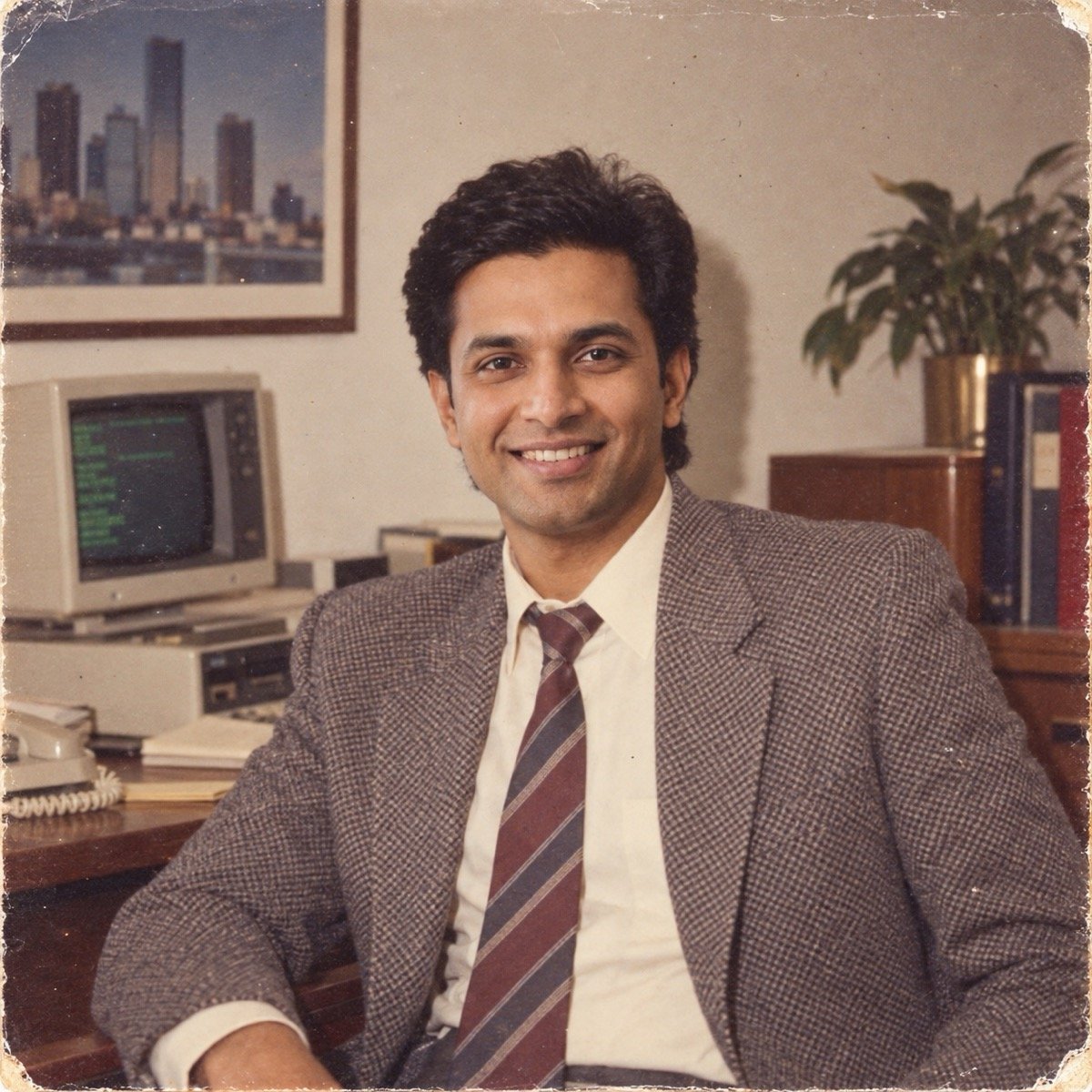
The prompt
Turn the uploaded photo into an authentic photograph from the 1980s: a 1980s hairstyle and clothes, a setting typical of the decade, lit the way a 1980s camera would light it, a slightly faded colour print with soft focus and visible film grain, so it looks like a real photo from 1985 and not a filter. Keep my face exactly the same as the uploaded photo — do not alter my facial features.
Too generic for your taste? Every prompt below is this one with the decade pinned to a specific place and moment.
How to use this prompt
From your photo to this look in under a minute
- Tap Copy on the prompt above.
- Open ChatGPT or Gemini and start a new chat.
- Attach your photo: clear, front-facing, decent light, no sunglasses or beauty filter.
- Paste the prompt and send. Change the outfit, place or number first if it does not fit you.
- Check the face first. If it is not you, regenerate or run the same prompt in the other app.
- New look, new chat. Chat apps carry details from one image into the next.
The face-lock line at the end of the prompt is what keeps the result looking like you. Do not delete it, and do not add “looking away” or “over my shoulder”: say where the camera is and let the scene decide the angle.
इस प्रॉम्प्ट को कैसे इस्तेमाल करें: ऊपर Copy दबाएँ, ChatGPT या Gemini में नई चैट खोलें, अपनी एक साफ़, सामने से ली गई फ़ोटो लगाएँ, प्रॉम्प्ट पेस्ट करके भेजें। आख़िरी लाइन “Keep my face exactly the same” मत हटाएँ, नहीं तो चेहरा बदल सकता है। नतीजा पसंद न आए तो वही प्रॉम्प्ट दूसरे ऐप में चलाएँ।
More 1980s AI photo prompts, each with its ChatGPT result
Every look below was run in ChatGPT the same way. Tap one for its prompt and result, or open all 16 1980s AI photo prompts on one page.
Browse prompts by occasion:
Frequently asked questions
Does this prompt work in Gemini as well as ChatGPT?
Yes. It is plain English, so it runs in Google Gemini on its Nano Banana image model and in ChatGPT on GPT Image. We publish the ChatGPT result; attach your photo in a new Gemini chat, paste the prompt and send. If one app misses, run it in the other.
Will it keep my face?
The prompt ends with the face-lock line, “Keep my face exactly the same as the uploaded photo — do not alter my facial features”, says “my face sharp”, and never tells the app where to look. Those three habits kept the face in almost every run across our prompt pages. Use one clear, front-facing photo and check the face before you post.
Which photo should I attach?
We used our male test persona, an AI-generated face, not a real person. Attach a clear, front-facing photo of yourself in decent light, no sunglasses and no beauty filter; for a two-person look, one photo with both of you in it.
Is this prompt free?
Yes. Copy it, change the outfit, place or number to suit you, and use it. ChatGPT and Gemini both have free plans with a daily image limit.